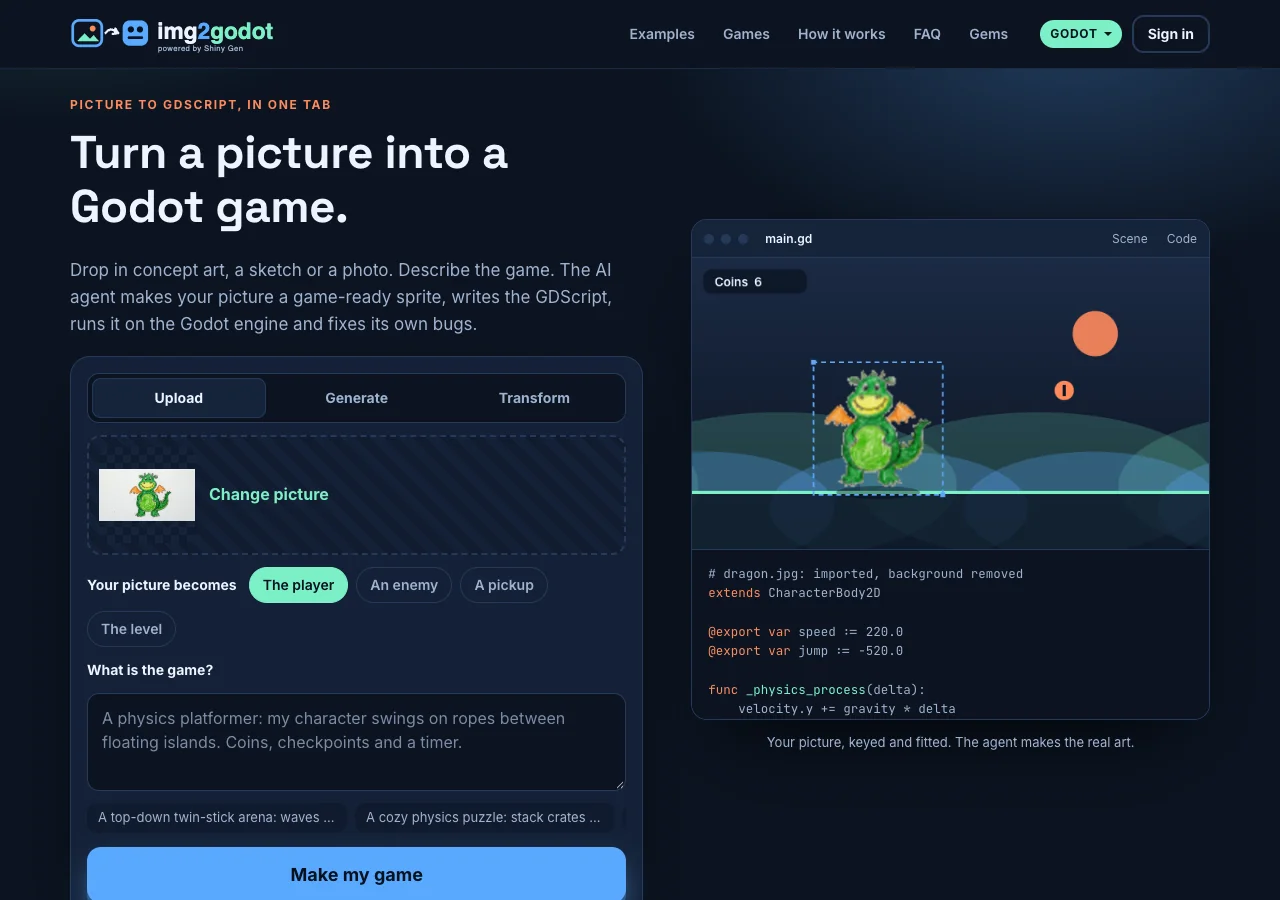
Picture in, game out
A kid's drawing becomes a Godot game: a crayon dragon, start to finish
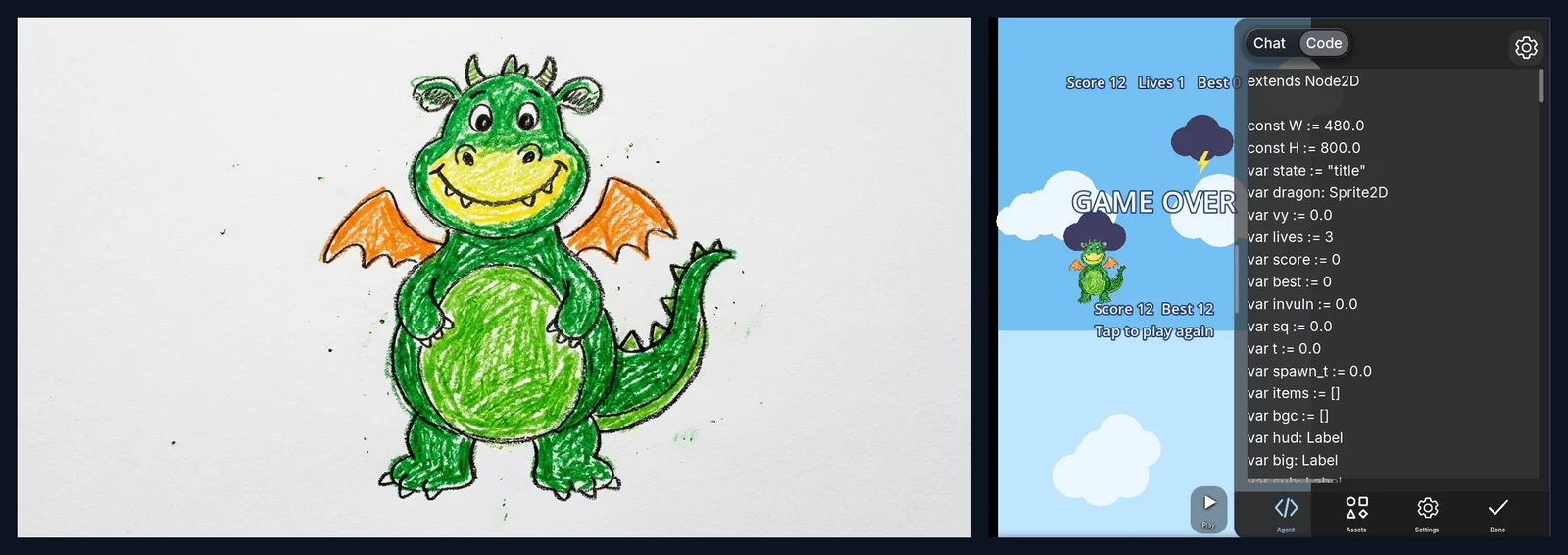
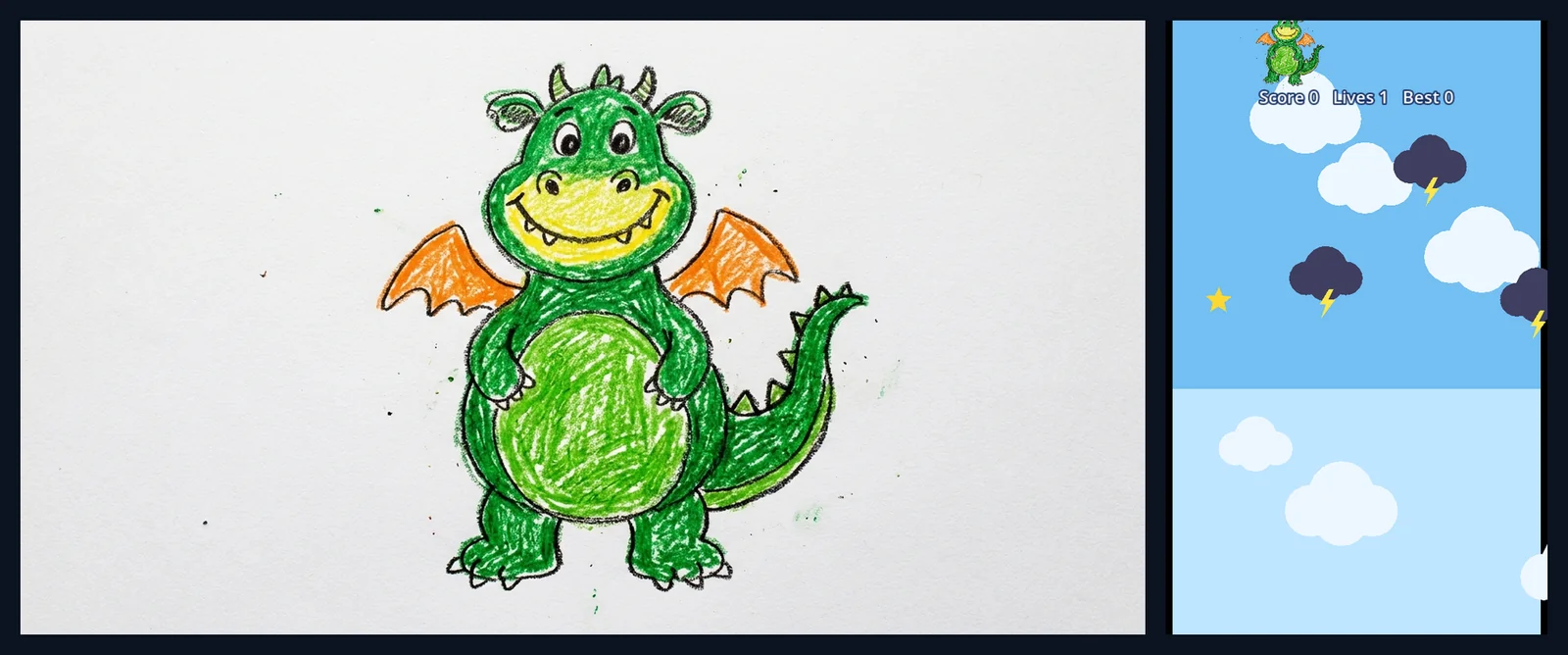
A child's drawing can be the hero of a real game. We dropped a crayon drawing of a green dragon into img2godot, asked for a flying game in one sentence, and the AI agent built Dragon Sky Flap: the drawing, exactly as drawn, flaps through the sky collecting stars and dodging storm clouds, with three lives and a saved high score. It took 1 minute 44 seconds of agent time and 10 gems, and it runs in the browser.
Also in: Español · Deutsch · Français · Português · Italiano · Nederlands · Svenska · Norsk · Bahasa Indonesia · Türkçe · Polski · Tiếng Việt · Русский · 日本語 · 한국어 · 繁體中文
On this page
Here is the whole session: the picture, the words, what the agent did, and what it said it had not checked.
The picture
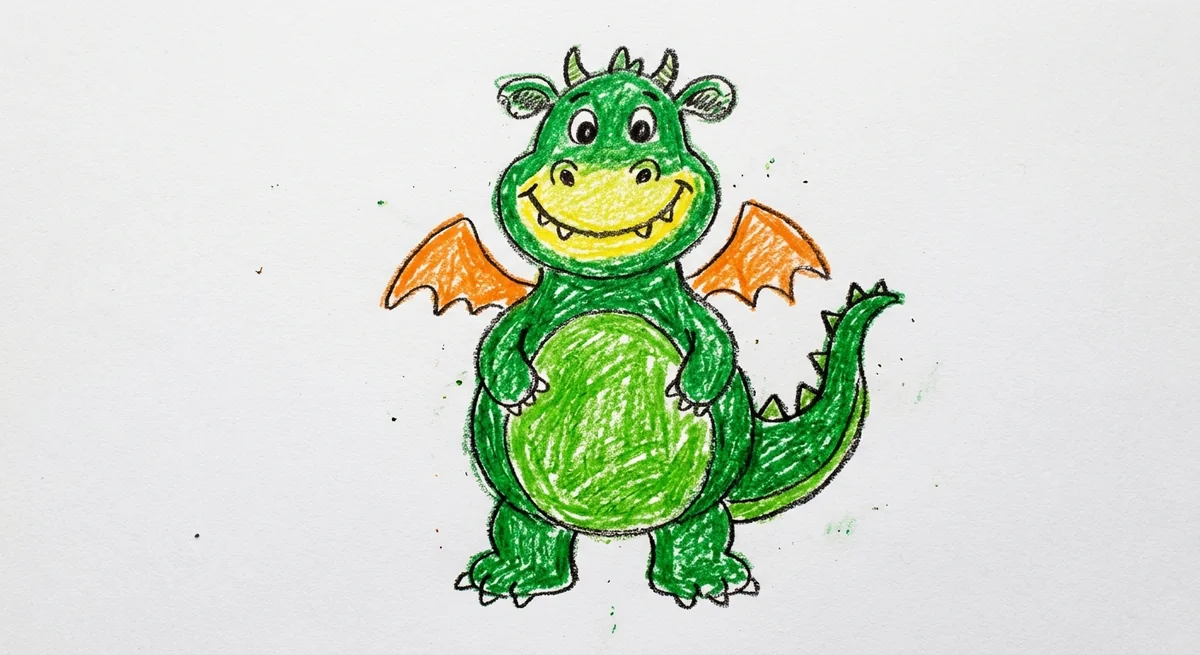
A green dragon in crayon on white paper: round belly, little orange wings, a big grin, wobbly lines. For this post we made the drawing with the same image model as the start card's Detailed option, prompted to look like a seven-year-old drew it, so we could publish it freely. A photo of a real drawing on paper works the same way, and that is the point of the site.
The prompt
We chose The player under "Your picture becomes" and typed one sentence:
The start card shows an instant preview of the picture with its plain background keyed out, sitting in a little scene. That preview is only a look; the agent makes the real sprite.
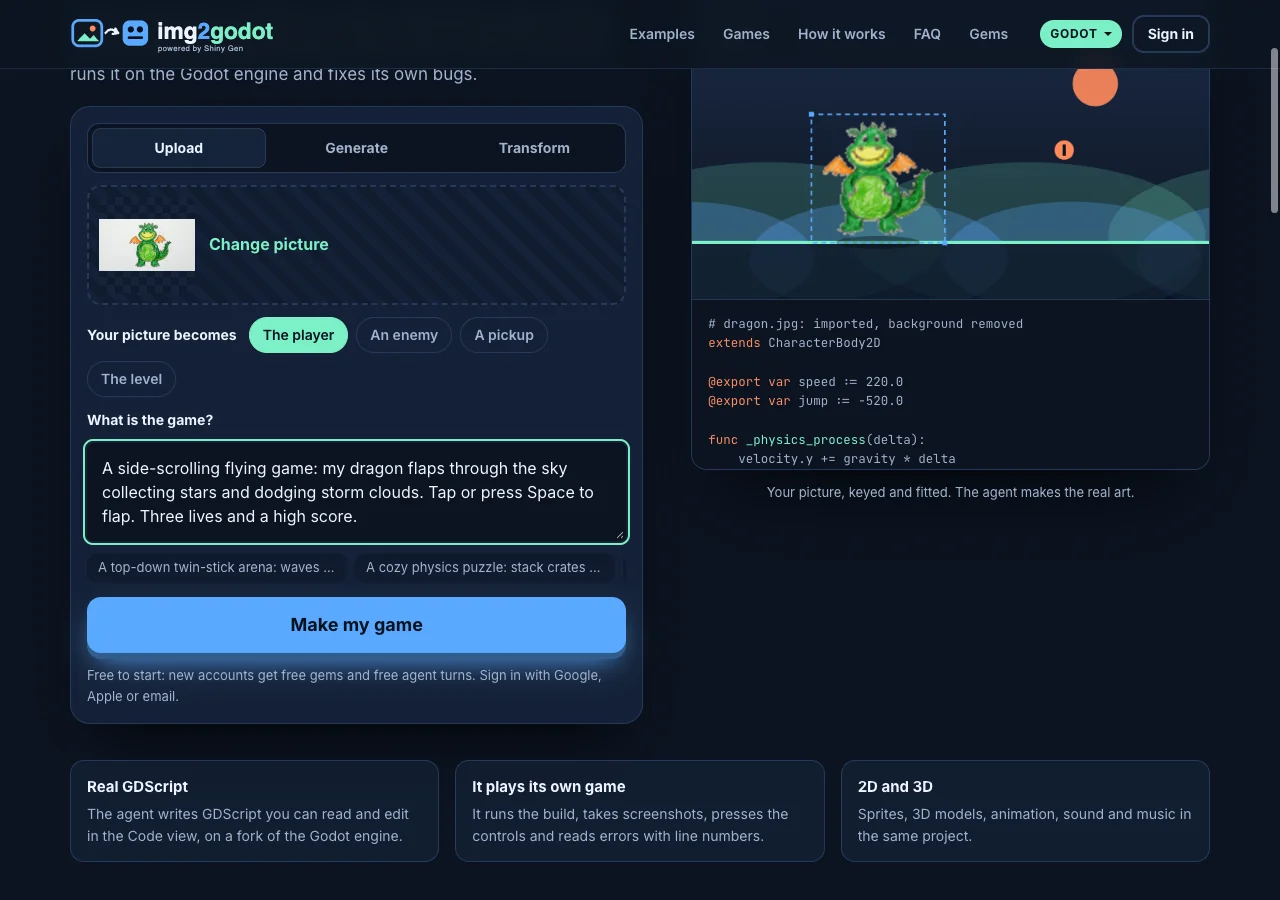
Pressing Make my game opened a sign-up on the same page (a new account, free), and the studio opened with the agent already at work about 10 seconds later. Nothing to install.
What the AI did
The site hands the agent your words plus a short instruction for the role you picked: use the picture as the player AS IT IS, keep it as the art, do not redraw it, and bring it to life in code. Because the drawing had a plain background, the site had already cut it out, so no gems went on background removal.
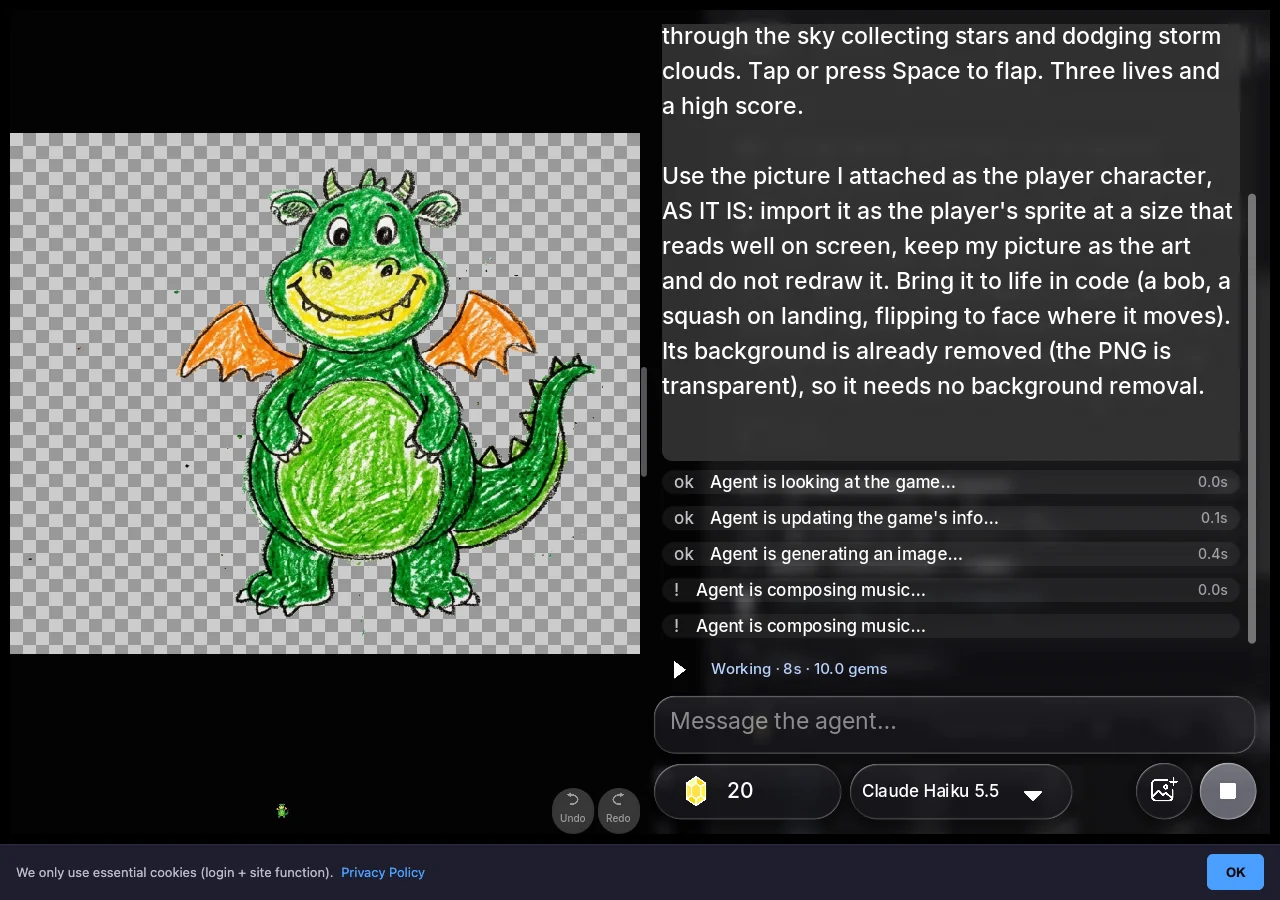
From the session's own log, step by step:
- Named the game Dragon Sky Flap.
- Imported the drawing as the dragon's sprite, free, straight from the upload, without retouching it.
- Made two sounds, a bright two-note chime for a star and a low thud for a hit.
- Wrote the game in GDScript: a tall 480 by 800 sky, a flap on tap or Space, stars to collect, storm clouds to avoid, three lives, a score, a high score saved between plays, a title screen with a demo, and a game-over screen.
- Looked at its own screenshot and fixed what it saw: the dragon was too small and the background clouds looked patchy.
- Played it. Its first round ended at game over without a star on screen, so it said scoring was untested. It then added a small test mode that steers the dragon toward stars, played a full round, and confirmed that stars add to the score (it reached 12), that clouds and the edges cost lives, and that the game-over screen showed "Score 12 Best 12".
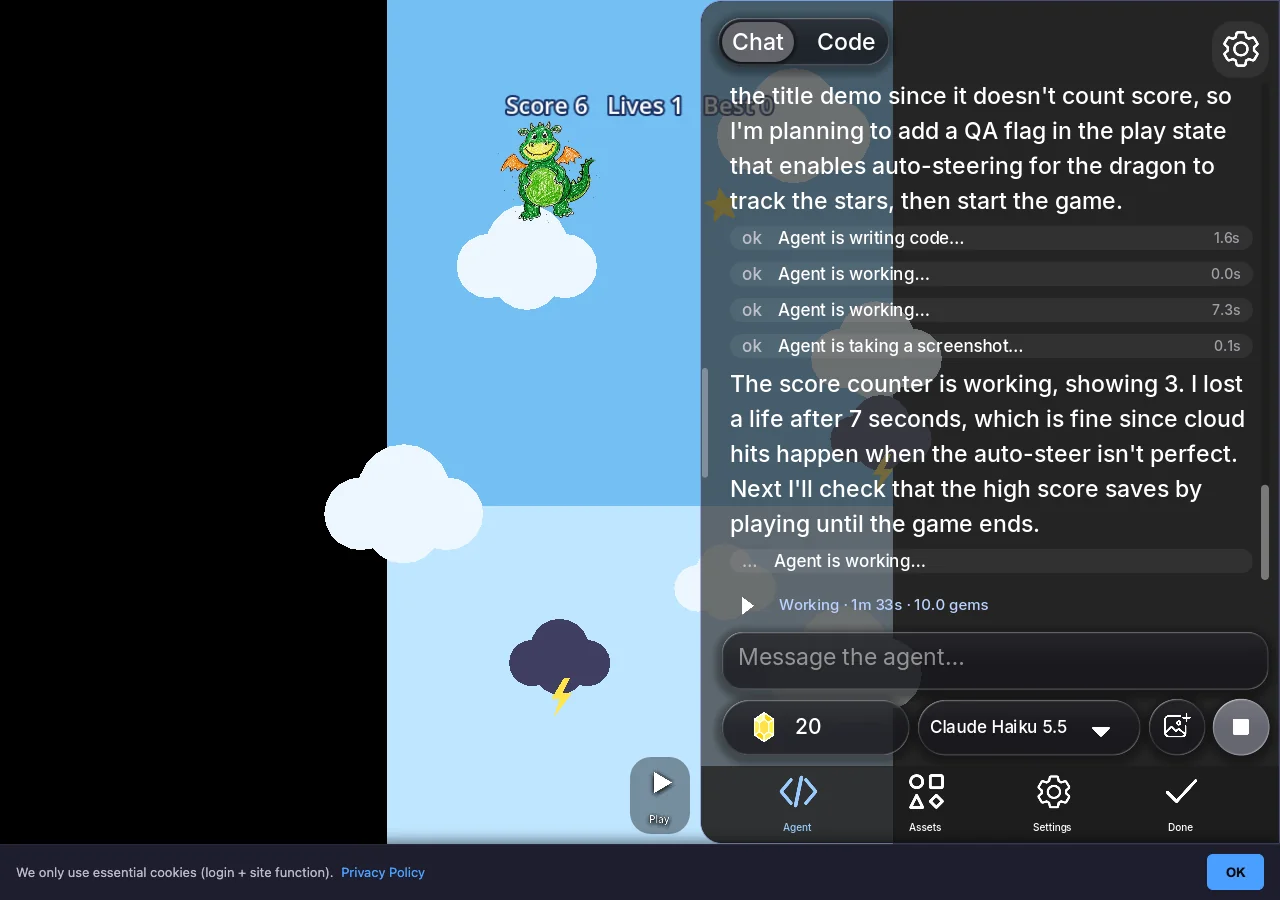
It worked for 1 minute 44 seconds over 12 agent steps, and the session cost 10 gems, covered by the free gems a new account starts with.
The dragon is not just pasted in. The agent made it bob, squash a little on each flap, tilt, and flip to face the way it moves. It also pointed out that the flip is subtle because the drawing faces the front.
What it told us it had not checked
The agent's closing message was honest about its gaps, which is what you want from a tool that writes code:
- It did not check that a second play shows the saved high score on the title.
- It did not listen to the star and hit sounds.
- It found one small bug: the Lives counter at the top still says 1 on the game-over screen instead of 0.
Each of those is a one-sentence follow-up in the chat. It also offered three next steps as buttons: "Add a fire breath that blows away storm clouds", "Make a sunset sky that changes as you score" and "Add a rainbow star worth five points". A kid will want all three.
The game
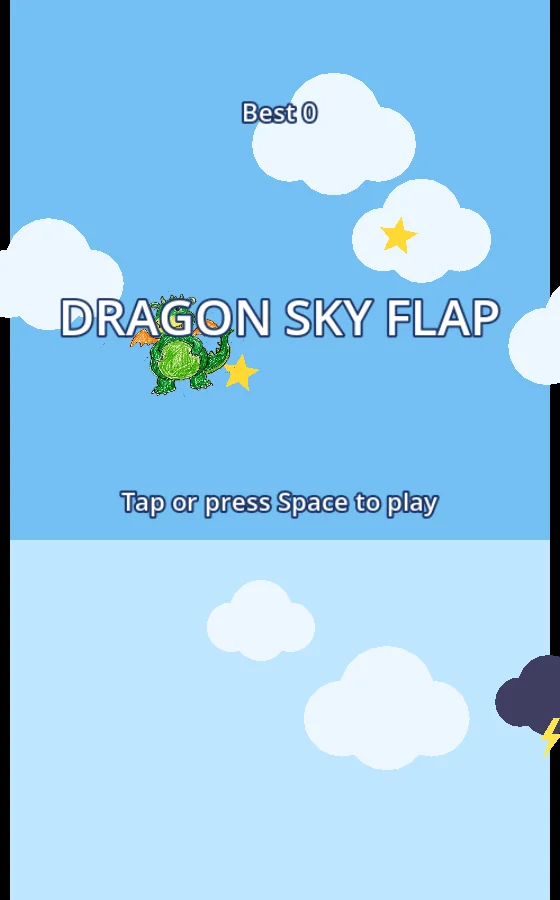
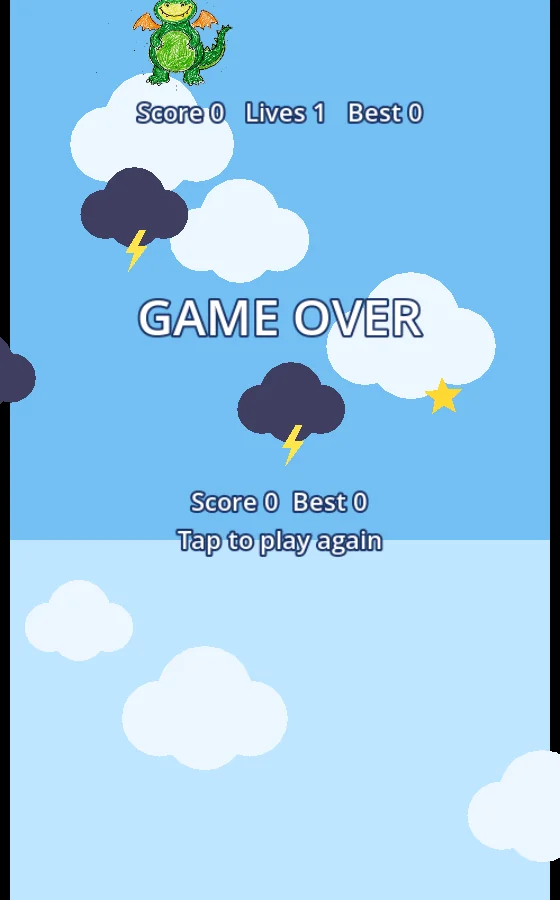
One thing worth knowing: we asked for "side-scrolling", and the agent chose a tall portrait sky that works well on a phone held upright. If you want a wide side-scroller instead, say so in the next message and it will change the layout.
The code is yours to read
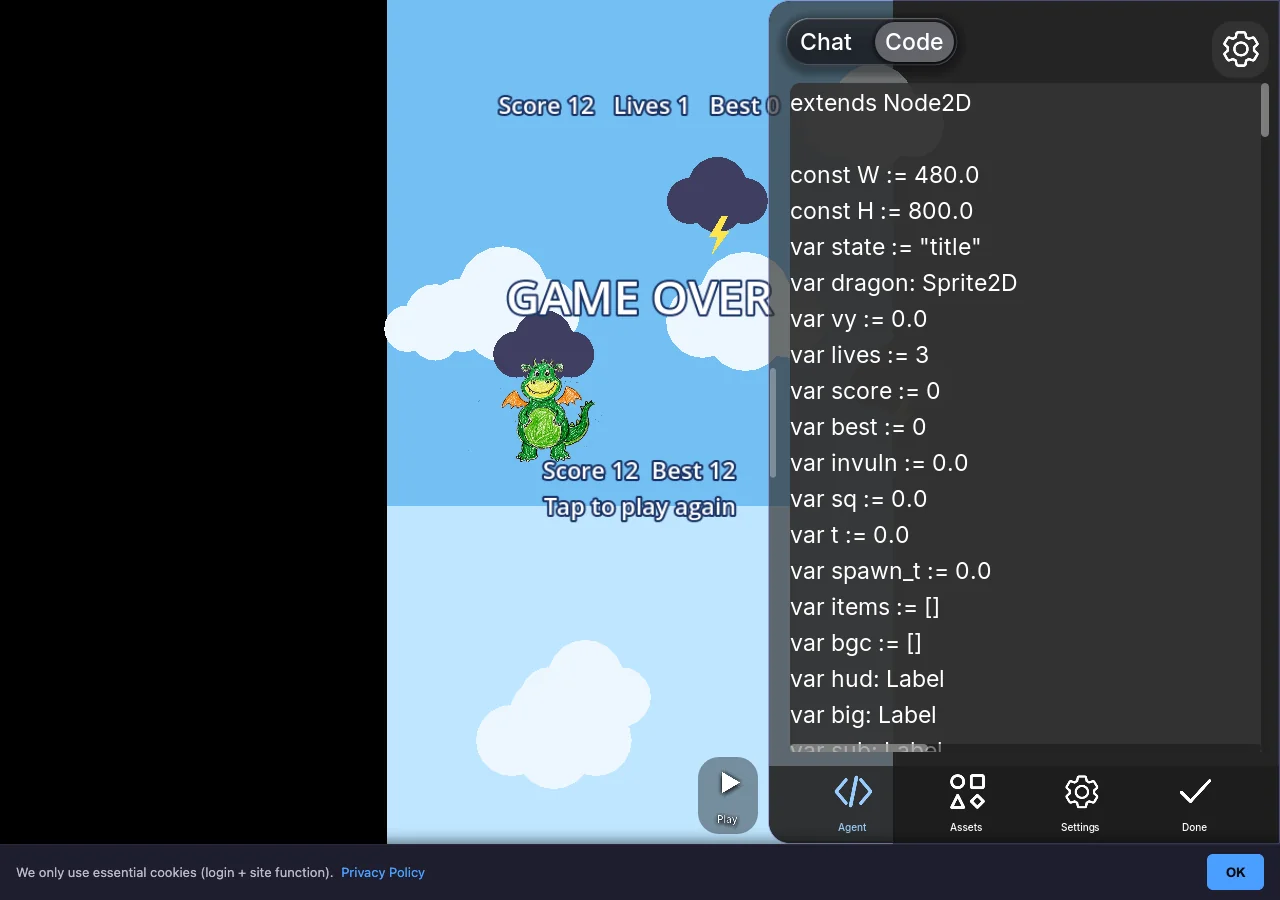
Every line the agent wrote is GDScript on the Godot engine, and you can read it in the Code view next to the chat: extends Node2D, a dragon: Sprite2D, lives, score, best. Editing it yourself costs nothing. It is a good first look at how a game is put together, for a kid or for a grown-up.
Make your own from a drawing
- Take a photo of the drawing straight on, in good light, on a plain table or sheet of paper. A plain background gives the cleanest cut-out.
- Open img2godot.com, drop the photo in the start card and choose The player (or an enemy, a pickup, or the level).
- Describe the game in a sentence, in the kid's own words if you like, and press Make my game.
- Play it, then ask for changes together: a boss, a power-up, a new sky.
The step-by-step guide is How to turn a picture into a Godot game.
FAQ
Can I use a photo of my child's real drawing?
Yes. That is exactly what the site is for. Photograph it straight on in good light; a plain paper background lets the site cut the drawing out cleanly, so the agent can use it as it is.
Will the AI redraw my kid's drawing?
No. The site tells the agent to use the picture as it is and not to redraw it. The agent sizes it for the game and animates it in code, with a bob, a squash and a flip, but the art stays the drawing.
How long does it take?
This one took 1 minute 44 seconds of agent time, plus about 10 seconds from pressing the button to the agent starting. Bigger requests, with more levels or a boss, take longer.
What did it cost?
10 gems, which a new account's free gems covered. Making, playing and sharing are free; AI generation uses gems, and gem packs start at $2.99.
Can my kid share the game?
Yes. Every game gets a share link that opens in any browser, on a phone or a computer. You choose whether people can only play it or also make their own copy.
Can a child use img2godot alone?
You need to be 13 or older, and if you're under 18, a parent or guardian needs to agree. With a younger child, the account is the adult's and you make the game together. Upload only pictures you are allowed to use.
Further reading
Last updated: November 17, 2026